
Feeling dizzy by your cluttered inbox? Sweating when you discover the urgent request from your Manager hidden between newsletters, promotional offers, or automatic reports?
Answering emails giving you a headache?
You might be suffering from a severe case of… email sickness!
Don’t worry, you’re not alone!
Millions of people (me included!) struggle with overflowing inboxes and the constant pressure to stay on top of emails.
But what if there was a cure?
This blog post is your prescription to conquering email sickness and reaching inbox serenity!
Before we dive into the remedies, let’s discard two traditional approaches that only treat the symptoms:
- Remedy 1: Constant Email checking
- Contrary to popular belief, frequently checking emails can actually hinder productivity. We will explore strategies to establish healthy email habits and break free from the constant checking cycle.
- Contrary to popular belief, frequently checking emails can actually hinder productivity. We will explore strategies to establish healthy email habits and break free from the constant checking cycle.
- Remedy 2: Deleting old emails
- Simply deleting old emails does not ensure an organized inbox. We will discuss the importance of implementing a robust filing system to tame the email chaos.
In fact, email efficiency can be achieved by assessing these three key metrics:
- Response Time: This measures how quickly you respond to emails after receiving them.
Aim for timely responses to build trust and address issues promptly. - Inbox Efficiency: This metric evaluates how effectively you manage and organize your email inbox.
Aim to categorize emails promptly, declutter your inbox regularly, and automate organization processes to streamline your workflow. - Email Quality: This metric is crucial as it goes beyond speed, emphasizing the importance of quality responses. By focusing on quality, you ensure effective communication and reduce the likelihood of follow-up questions or misunderstandings.
Aim to craft emails that are clear, concise, and directly address the sender’s concerns.
So, let’s explore actionable strategies to improve your Email Health by treating these three metrics!
By the end of this post, you will gain valuable insights to streamline your email management process, enhance efficiency, and sail with confidence through the ocean of emails.
Let’s board the ship!

A. Strategies for Timely Responses
Metric: Response time
This metric measures how quickly you respond to emails after receiving them.
Timely responses are essential for maintaining effective communication, building trust with your contacts, and ensuring that issues are addressed promptly.
Delayed responses can lead to misunderstandings, missed opportunities, and frustration for both you and the sender.
1. Establish an Email routine
You may have created a habit of responding to emails as soon as you receive them, or perhaps you find yourself checking your inbox regularly, creating notifications to ensure you never miss that urgent one.
But that’s not efficient because it disrupts your workflow and hinders your productivity.
Constantly switching between tasks to address incoming emails can fragment your focus and decrease your overall efficiency.
Here are some new productive habits to consider:
- Designate email time: Setting aside specific time slots throughout the day to check and respond to emails can boost productivity.
Allocating 30 minutes in the morning, afternoon, and evening ensures consistent communication, preventing emails from taking over your entire day.
This routine helps create boundaries and ensures that email does not disrupt your focus on other essential tasks. - Turn off notifications: Constant email notifications can be distracting and disrupt your workflow. By disabling notifications, you can focus on other tasks without interruption.
Imagine trying to concentrate on an important project, only to be distracted every few minutes by incoming notifications, affecting your concentration.
Disabling notifications allows you to regain control of your attention and maintain a more productive workflow. It also helps reduce stress by eliminating the constant urge to check your inbox.
- Batch similar responses: Grouping similar responses together streamlines the email process and saves time. Rather than replying to emails individually as they arrive, consolidating similar tasks allows for more efficient time management.
Instead of responding to each client email as it comes in, setting aside a specific time to address all client inquiries at once can enhance efficiency and minimize the need for context switching.
This approach minimizes mental clutter and optimizes your workflow for better productivity. - Schedule email sending: Some email clients and productivity apps allow you to schedule emails to be sent later. This feature can be helpful if you’re composing a response during a batch session but don’t want to send it immediately.
By scheduling emails to be sent at a later time, you can maintain your email routine while ensuring that messages are delivered at the most appropriate times for maximum impact.

2. Use templates and shortcuts
Do you find yourself typing the same responses to emails over and over again? Are you tired of the repetitive tasks that come with managing your inbox?
Instead of typing out the same responses repeatedly, you can utilize pre-written templates and shortcuts to quickly address common inquiries or messages.
Templates and shortcuts revolutionize email communication by simplifying repetitive tasks.
Here are some essential ones to consider:
- Email templates: Creating email templates for commonly sent messages can significantly streamline your communication process. Templates allow you to pre-compose emails with standard content, such as responses to frequently asked questions or introductory messages.
This not only saves time but also ensures consistency in your communication.
Most email platforms offer built-in features for creating and saving email templates.
In Gmail, you can access this function by going to Compose > Templates > Save draft as template. - Keyboard shortcuts: Utilizing keyboard shortcuts can dramatically improve your email efficiency by reducing the time spent on repetitive tasks.
Most email platforms have built-in keyboard shortcuts for common actions like compose, reply, forward, and delete.
You can typically find a list of these shortcuts within the email client settings.- In Gmail: First, make sure that keyboard shortcuts are enabled in your Gmail settings.
To check this, go to your Gmail settings by clicking on the gear icon in the top right corner of Gmail, then selecting “See all settings”.
In the settings menu, navigate to the “General” tab and ensure that the “Keyboard shortcuts” option is set to “Keyboard shortcuts on”.
- In Gmail: First, make sure that keyboard shortcuts are enabled in your Gmail settings.

These are just a few of the many keyboard shortcuts available in Gmail.
You can find a complete list of Gmail keyboard shortcuts by pressing ‘?’ while in Gmail to open the Help menu, then selecting ‘Keyboard shortcuts’.

3. Prioritize emails effectively
Managing your inbox can feel like a daunting task, especially when you’re bombarded with emails from various sources.
However, by sorting emails based on urgency, importance, or sender, you can allocate your time and attention more efficiently.
Prioritizing your emails can help you stay organized and ensure that you’re addressing the most important messages first.
Here are some strategies to help you prioritize your emails effectively:
- Set clear priorities: One of the most important aspects of email management is setting clear priorities.
It’s essential to differentiate between urgent and non-urgent emails and respond accordingly. Take the time to assess each email as it comes in and determine its level of urgency and importance. Establish specific criteria for what constitutes an urgent email.
Emails from your Manager, important clients, or time-sensitive projects may require immediate attention. This will help you focus your time and energy on the messages that require immediate attention. - Star important messages: Marking important emails can help you identify and respond to them promptly. Whether it’s a message from your boss, a deadline reminder, or an important client inquiry, flagging these emails ensures that they don’t get lost in the shuffle.
Develop a system for flagging urgent messages so that you can easily distinguish them from the rest of your inbox. You could use a color-coded label system to flag urgent messages.
Assign a specific color, such as red, to emails that require immediate attention. This way, when you scan your inbox, you’ll instantly know which messages need to be addressed first. - Utilize mark unread: Sometimes, you may come across an email that requires a more thoughtful response, but you don’t have time to address it right away. In such cases, marking the email as unread can serve as a reminder to revisit it later.
This feature can be particularly useful for emails that require further research or input from others.
By marking emails as unread, you can ensure that they don’t slip through the cracks and that you address them in a timely manner.
| As you implement these strategies, you’ll find yourself more focused, efficient, and organized in handling your email communication. Change your email habits and reclaim valuable time for other tasks! |

Now, let’s explore techniques for organizing your inbox to further enhance your email management skills and maintain efficiency in your workflow.
B. Strategies for an Organized Inbox
Metric: Inbox Efficiency
This metric evaluates how effectively you manage and organize your email inbox using various strategies.
Aim for a high level of efficiency in organizing emails, categorizing them promptly, and implementing automation tools to streamline your workflow.
Efficient inbox organization ensures timely access to important emails, reduces clutter, and enhances productivity. It allows for better prioritization of tasks and improves the overall workflow.
1. Folder and Label organization
Keeping your inbox organized is essential for efficient email management.
By organizing emails into folders and labels, you can declutter your inbox and reduce the time spent searching for important information.
Folders and labels provide a systematic way to categorize and sort your emails, making it easier to locate specific messages when needed.
Together, they streamline email navigation and enhance productivity.
Here’s how you can effectively organize your emails using folders and labels:
- Create folders and labels:
- Start by creating folders and labels to categorize your emails based on different criteria, such as projects, clients, or priority levels.
- Labels offer additional flexibility by allowing you to tag emails with descriptive keywords or categories, providing quick visual cues for identifying and sorting messages.
- Most email clients allow you to create folders and labels easily.
In Gmail, you can click on the “More” option on the left sidebar and then select “Create new label” to create a new label.
- Best Practices for Naming: When naming your folders and applying labels, it’s important to use clear and descriptive names that reflect the content of the emails they contain. Avoid using vague or generic names that may cause confusion later on.
Instead of naming a folder “Miscellaneous,” opt for more specific labels like “Project X Updates” or “Client Correspondence.”

2. Maintain a clutter-free Inbox
A clutter-free inbox streamlines your email management process, enabling quicker access to important messages and reducing distractions.
This organization fosters improved focus and productivity while minimizing the stress associated with navigating a cluttered email environment.
By regularly decluttering your inbox, you can create a more efficient workflow and ensure that critical communications are promptly addressed.
Here are some tips to help you achieve and sustain inbox clarity:
- Regularly archive or delete: Develop a habit of regularly archiving or deleting unnecessary emails to prevent inbox overload.
Set aside time each week to declutter your inbox and remove emails that no longer serve a purpose. - Unsubscribe from unnecessary newsletters: Take control of your inbox by unsubscribing from newsletters and promotional emails that clutter your inbox.
Consider using a service like Unroll.me to easily unsubscribe from multiple subscriptions at once. - Limit email attachments: Avoid using email as a file storage solution by limiting the number of attachments you keep in your inbox.
Save important attachments to your computer or cloud storage and delete them from your email once they are no longer needed.

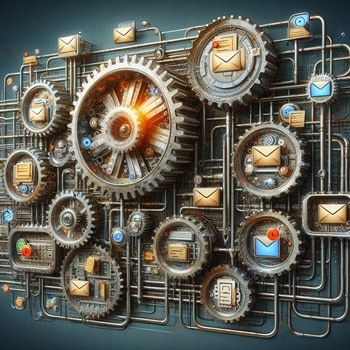
3. Automate with Filters and Rules
Automating email organization with filters and rules can significantly improve your efficiency in managing your inbox.
This proactive approach reduces the manual effort required to process emails individually, allowing you to focus on more important tasks while ensuring that your inbox remains organized and clutter-free.
By setting up filters and rules, you can automatically categorize, prioritize, or archive incoming emails based on predefined criteria.
Here’s how you can leverage filters and rules to streamline your email workflow:
- Understanding filters and rules: Email filters and rules are automated tools that allow you to sort incoming emails based on specific criteria.
You can create filters to automatically categorize emails from certain senders, with specific keywords, or containing attachments.
Rules determine how these filtered emails are processed, such as being moved to a designated folder, marked as important, or flagged for follow-up. - Benefits of automation: By setting up filters and rules, you can save time and reduce manual effort spent on organizing your inbox.
Instead of manually sorting through every email, filters automatically categorize incoming messages, allowing you to focus on the most important ones.
Experimenting with different filter settings enables you to tailor your email organization to suit your preferences and priorities. - Examples of filter criteria: Filter criteria can vary depending on your specific needs and preferences.
Some common filter criteria include sender email addresses, subject lines, keywords, and message size.
You can create filters to automatically categorize emails from specific clients or projects, newsletters, or emails containing specific keywords related to urgent tasks or important updates.
4. Utilize Search and Archive Features
These functionalities enable you to quickly locate specific emails or information within your inbox, saving you time and effort.
Additionally, archiving allows you to declutter your inbox by storing older or less relevant emails in a separate location while still retaining easy access when needed.
Mastering these features improves your ability to organize and retrieve emails efficiently.
Harnessing the power of search and archive features can significantly enhance your email management experience.
Here’s how you can make the most of these functionalities:
- Leveraging Search functionality: The search feature is a powerful tool for quickly finding specific emails within your inbox, even amidst a large volume of messages.
Utilize search operators and advanced filters to refine your search and pinpoint emails based on criteria such as sender, subject, keywords, or date.
You can use search operators like “from:”, “subject:”, or “after:” to narrow down your search results and locate emails more efficiently. - Managing archives: Archiving old emails is crucial for decluttering your inbox while retaining access to important past conversations.
Develop a systematic approach to archiving emails by creating folders or labels for different categories or time periods. Additionally, consider setting up automatic archiving rules to streamline the process and ensure that your inbox remains organized.
By regularly archiving old emails, you can maintain a tidy inbox and facilitate quicker access to relevant information when needed.

5. Customize your inbox
Customizing your inbox can optimize your email management experience.
This personalized approach not only increases efficiency but also reduces clutter and helps you maintain focus on your tasks.
By tailoring your inbox settings to your specific preferences and workflow, and organizing emails in a way that resonates with your work style, you can streamline the way you interact with emails and prioritize important messages more effectively.
Here’s how you can tailor your inbox settings for greater efficiency:
- Priority Inbox: This feature automatically categorizes emails based on importance, helping you focus on critical messages.
While Gmail offers Priority Inbox, similar functionalities are available in other email providers like Outlook, where features like Focused Inbox serve a similar purpose.
You can customize settings to fine-tune your email prioritization criteria based on your preferences and workflow.- Let’s say you’re using Gmail, and you have a Priority Inbox enabled. Gmail automatically categorizes your incoming emails into three sections: “Important and Unread,” “Starred,” and “Everything Else.” Emails from your boss, important clients, or urgent project updates are categorized as “Important and Unread,” making them easily accessible at the top of your inbox.
- Multiple Inboxes: Another useful feature, available in Gmail and similar email platforms, is Multiple Inboxes.
This feature allows you to create custom inbox sections for different categories of emails, such as projects, clients, or team members. Similarly, Outlook offers customizable inbox views and folder organization options to tailor your inbox layout to your specific needs and priorities.
Suppose you’re managing multiple projects and clients.
- With Multiple Inboxes in Gmail, you can create custom inbox sections for each project or client. You can set up separate inbox sections for “Project A,” “Project B,” and “Client X,” allowing you to quickly access emails related to specific projects or clients without cluttering your main inbox.
- Similarly, in Outlook, you can create custom inbox views and folder organization to categorize emails by project, client, or any other criteria that align with your workflow.
This organization ensures that you can easily navigate and prioritize your emails based on your specific needs and priorities.

6. Stay productive with integrations
Integrating your email with other productivity tools enhances email management by centralizing tasks and information, reducing the need to switch between multiple platforms.
This seamless workflow integration allows for quicker access to relevant information and smoother communication, ultimately boosting overall productivity.
Explore the following integrations to optimize your workflow::
- Project Management: One specific example is integrating your email with Trello, a project management tool that helps you organize tasks and collaborate with your team using customizable boards, lists, and cards.
With your email and Trello connected, you can easily turn an email into a to-do list item on your Trello board.- Imagine you’re going through the action items from a team meeting email. You spot a task assigned to you. Instead of copying it manually, use the Trello Chrome extension. Click on the Trello icon in your browser toolbar, and turn that task into a Trello card right from your email inbox. It’s a straightforward way to keep track of tasks and stay organized without any extra steps.
- Calendar Management: Another practical integration is syncing your email with your calendar, whether it’s Google Calendar, Outlook Calendar, or another calendar application.
Imagine you receive an email from your colleague about an upcoming team meeting. The email contains all the details you need, including the meeting date, time, location, and agenda.
Instead of manually copying this information into your calendar, you can simply click on the email and use the email-calendar integration to create a new event directly from the email.- To access this feature in Gmail, just click on the three dots at the top right corner of the email and select ‘Create event.’ This feature is currently available only in the web version of Gmail. To enable it, go to Gmail Smart features and personalization settings, and in Calendar, go to Settings > Events From Gmail, and move the slider to the On position. If the event date or details are not accurately captured, you can easily adjust them in your Google Calendar settings.
- Customer Relationship Management: Additionally, consider integrating your email with CRM software like Salesforce or HubSpot.
This integration enables you to track customer interactions, manage leads, and follow up on sales opportunities directly from your inbox.
By having access to customer information and communication history within your email, you can provide personalized and timely responses, leading to better customer relationships and increased sales.
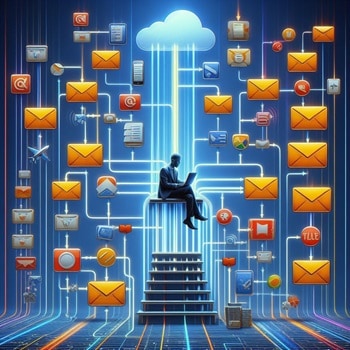
| Maintaining an organized inbox is crucial for efficient email management, allowing you to stay focused, productive, and stress-free. By implementing these techniques, you can streamline your email workflow and regain control over your inbox. Customizing your inbox settings further enhances your email management experience, enabling you to prioritize critical messages and tailor your inbox layout to your unique preferences and workflow. Finally, integrating Gmail with other tools provides practical advantages that enhance your productivity and efficiency in managing emails, tasks, appointments, and customer interactions. |

Now that you’ve mastered the art of organizing your inbox, let’s shift our focus to crafting clear and concise emails that facilitate effective communication and collaboration.
C. Strategies for Quality Emails
Metric: Email Quality
Beyond speed, the quality of your responses is equally important. Quality responses are clear, concise, and directly address the sender’s concerns.
Poorly written or vague responses can lead to confusion, misunderstandings, and inefficiencies in communication.
By prioritizing quality in your email responses, you can ensure effective communication and reduce the likelihood of follow-up questions or misunderstandings.
1. Craft relevant emails
When recipients can quickly discern the purpose of your email, they are more likely to engage with the content.
Additionally, keeping your messages easily digestible reduces the risk of recipients becoming overwhelmed or disinterested.
Crafting relevant emails, which makes your messages immediately understandable and pertinent, increases the likelihood of recipient engagement and response.
Let’s explore some best practices to ensure that your messages stand out and foster meaningful engagement :
- Clear subject line: A well-crafted subject line serves as the gateway to your email’s content.
It should succinctly convey the purpose of your message while enticing recipients to open it. Instead of a generic subject like “Urgent,” opt for a descriptive one such as “Urgent Action Needed: Proposal Due by Friday”- Example: Subject: “Friendly Reminder: Proposal Submission Deadline Approaching”
- State your purpose upfront: In today’s fast-paced world, brevity is key. Start your email with a clear and concise statement of purpose to grab the recipient’s attention from the outset.
Avoid lengthy introductions and unnecessary background information. Instead of beginning with niceties, dive straight into the reason for your email: “I’m reaching out to discuss the upcoming project deadline.”- Example: “I’m following up on our previous conversation regarding the marketing campaign. Attached, please find the revised timeline for your review and feedback.”
- Keep it focused: To maintain clarity and avoid overwhelming recipients, stick to one main topic per email.
Complex issues are best addressed in separate communications to prevent confusion. By focusing on a single subject, you ensure that your message remains clear and actionable.- Example: “Let’s discuss the agenda for next week’s strategy meeting. I propose we cover the following topics: quarterly goals, budget allocation, and upcoming initiatives.”
- Personalize: Personalizing your emails can enhance engagement and foster stronger connections. Strategies for personalization include addressing recipients by name and referencing previous interactions.
- Example: instead of a generic greeting, personalize your email with the recipient’s name: “Hi [Recipient’s Name],”
- Reference previous interactions to make the email more relevant: For instance, “Following up on our discussion last week about the marketing campaign…”
- Keep it clear and concise: This is essential for ensuring your message is understood quickly and accurately.
Avoiding jargon, using bullet points for readability, and structuring emails for quick comprehension can enhance clarity.
Here is the example of an email introducing action items:


2. Maintain Professionalism
By adhering to professional standards of communication, you ensure that your emails are clear, concise, and respectful, thereby reducing the likelihood of misunderstandings or offense.
This minimizes the need for damage control or conflict resolution, allowing for smoother professional relationships and ultimately contributing to increased productivity and efficiency.
Whether you’re corresponding with colleagues, clients, or partners, maintaining professionalism in your emails is paramount.
Here are three essential tips to elevate your email etiquette:
- Proofread before sending: Before hitting the send button, take a moment to review your email for typos, grammatical errors, and overall clarity.
A well-written email reflects positively on your attention to detail and professionalism. Use grammar and spelling check tools ensures that your emails are free from typos and grammatical errors.
These features automatically highlight potential mistakes, allowing you to correct them before sending your message. - Mind your tone: The tone of your email sets the tone for the entire conversation.
Aim to strike a balance between professionalism and approachability, avoiding language that may be perceived as abrupt or disrespectful.
Remember, written communication lacks the context of verbal cues, so choose your words carefully to convey your message effectively.- Example of Overly Formal Tone: “Dear Sir or Madam, I hereby request your esteemed presence at the upcoming meeting scheduled for the 15th of this month. Your attendance would be greatly appreciated.”
- Example of Too Informal Tone: “Hey, what’s up? Can you make it to the meeting on the 15th? Let me know ASAP!”
- Example of Balanced Tone: “Dear [Recipient’s Name], Thank you for your input on the proposal. I appreciate your insights and look forward to collaborating further.
By striking the right balance in your tone, you can ensure that your emails are professional, respectful, and conducive to effective communication.
- Communicate timeframes: Clear communication is key to managing expectations in professional relationships.
When discussing deadlines, be transparent and realistic about timeframes. Proactively provide updates or timelines when necessary to keep all parties informed and aligned.- Example: “I will follow up with you by the end of the week to discuss next steps.”

3. Leverage AI features
Leveraging features can significantly enhance the quality and professionalism of your emails by providing automated assistance that improves accuracy, clarity, and efficiency in your communication.
These AI-driven tools help streamline the email writing process, reduce errors, and save time, allowing you to communicate more effectively and focus on other important tasks.
Here are some of these AI features:
- Autocorrect: Autocorrect functions help prevent common typing mistakes by automatically suggesting corrections as you type.
This feature not only saves time but also ensures that your emails are coherent and error-free.
If you accidentally type “teh” instead of “the,” autocorrect will prompt you to correct the mistake before sending the email. - Smart Compose: Smart compose uses artificial intelligence to suggest complete sentences and phrases as you type your email.
By analyzing your writing patterns and context, smart compose predicts what you’re likely to say and offers suggestions to expedite the writing process.
This feature can help you craft more polished and concise emails, saving time and effort in composing messages. - Smart Reply: Smart reply offers quick response suggestions based on the content of received emails.
This feature allows you to respond to messages promptly with pre-written responses tailored to the email’s context. By utilizing smart reply, you can maintain responsiveness in your communication without spending time drafting individual responses.
If someone emails you asking for your availability for a meeting, smart reply may suggest responses like “I’m available on Wednesday afternoon” or “Let’s schedule a meeting for next week.” - AI tools: Additionally, utilizing tools like AI chatbots can assist in crafting effective emails by providing suggestions and improvements based on your input.
These chatbots analyze your message content and offer recommendations for enhancing clarity, tone, and professionalism.
By incorporating AI-powered assistance, you can streamline the email writing process and ensure that your messages are well-crafted and impactful.

| By prioritizing quality over speed, crafting relevant, focused and concise emails, maintaining professionalism, and leveraging AI features, you can enhance the clarity, efficiency, and professionalism of your communication. |

Conclusion
Effective email management is essential for navigating the complexities of modern-day communication and avoiding email sickness.
By discarding ineffective approaches and focusing on key metrics like response time, inbox organization efficiency, and email quality, you’ve equipped yourself with practical strategies for clearer communication and increased productivity!
As you conclude your exploration, keep in mind that managing emails is an ongoing process.
With dedication and healthy habits, you can overcome the challenges of email chaos, strike a balance between responsiveness and productivity, and ultimately achieve inbox serenity.
As you embark on this journey of mastering the art of email management and productive communication, you are empowered to sail smoothly through your inbox!

Ready to delegate? Explore the unique value I add to your business!
Click here to learn more about my services and how I can bring a holistic approach to your work.
 Cath Assist Service