

In today’s fast-paced work environment, instant messaging platforms like Slack have become essential for communication.
But are you making the most of this powerful tool?
Slack offers more than just a messaging service; it can be seamlessly integrated with the apps you use every day, turning it into a central hub for your workflow.
Many users only scratch the surface of Slack’s capabilities, often using it merely for basic messaging.
In this blog, we’ll uncover amazing features and automation tools that can significantly boost your productivity. From advanced search capabilities to efficient task management, we’ll explore how to unlock Slack’s full potential without needing to upgrade.

1. Utilize Advanced Search for Quick Information Access
While many users stick to basic search to find old messages, Slack provides advanced search features that can save you time.
Search Modifiers
Use these modifiers to narrow your search:
- From: Filter messages from a specific person.
- In: Search within a particular channel.
- Has: Find messages containing specific files or links.
- To: @yourname to find DMs sent to you.
- **Before:**date; **After:**date; **On:**date; **During:**month or year to locate messages from a specific time frame.
Examples
- To find a file shared in a specific project channel, search for in:#projectx has:pdf.
- To locate a conversation with your manager from last month, try from:@manager before:2024-07-01 after:2024-06-01.
| Advanced search helps you quickly find important information without endlessly scrolling through chat history. |
2. Customize Notifications and Status for Enhanced Focus
In a busy work environment, staying focused and managing interruptions can be challenging.
By customizing your notifications and setting clear status messages, you can prioritize critical updates and let your team know your availability.
Set Keyword Alerts
- Click on your workspace name at the top left and navigate to Preferences > Notifications.
- Add specific keywords under My Keywords to get alerts for important terms.
- Example: if you’re on a sales team, add a key client’s name, like “ClientCompany.” You’ll be notified whenever “ClientCompany” is mentioned, ensuring you stay updated on essential discussions.
Notification Preferences
- Customize notifications for each channel based on your needs.
- For high-priority projects, set alerts for keywords like “urgent” in the relevant channels, ensuring you receive crucial updates without unnecessary distractions.
Mute Options
- Mute less critical channels to reduce distractions.
- Right-click the channel name and select Mute channel. For example, mute the #random channel while focusing on critical tasks, but keep notifications on for essential channels like #projects.
Set a Custom Status
- Click on your profile picture and choose “Set a status.“
- Create a message that reflects your availability, such as “In a meeting until 3 PM” or “Working on a deadline—reply may be slow.”
- Add emojis to your status for instant recognition. For example, use a 🛑 (stop sign) for “Do Not Disturb” or a 📅 (calendar) for busy times.
- Keep your status updated to reflect any changes, like switching from “Out of office until 3 PM” to “Available now,” ensuring your team always knows your current availability
| Custom notifications, mute options, and status messages work together to minimize interruptions and help you focus on critical tasks while clearly communicating your availability. |

3. Pin Messages for easy Access to Key Information
Efficient communication relies on having key information easily accessible.
Slack’s message pinning feature helps you organize and retrieve important messages, ensuring critical information isn’t lost in daily communication.
Pin Messages
- Pin important messages in a channel so all team members can quickly access key information. This is especially useful for tracking announcements, guidelines, or essential links.
- Example: Pin a message with deadlines and instructions in the #project-updates channel to ensure everyone can easily find and refer to it.
| Pinning messages keeps essential information readily accessible, reducing the need to dig through chat history. |
4. Optimize Your Slack Workspace for better Efficiency
An organized workspace enhances productivity by keeping important information easily accessible.
Slack offers various features to help you customize and streamline your workspace effectively.
Save for Later
- Click the “Save” icon (a flag) next to a message to bookmark it.
- Example: Save a key message about an upcoming deadline so you can find it quickly when needed.
Mark as Unread
- Use the “Mark as Unread” option to flag a message for follow-up.
- Example: Mark a message with action items as unread to ensure you remember to address them later.
Bookmark Important Links and Files
- Use the Bookmark Bar (also known as the Channel Header) to keep crucial links, files, and documents at the top of a channel, ensuring they’re always easy to find.
- Example: Bookmark a project’s Google Doc or a key spreadsheet so team members can quickly access it whenever needed.
Create Dedicated Threads
- Use threads within channels to group related discussions and resources, keeping conversations organized and making it easy to locate important information.
- Example: Create a thread for all meeting notes and bookmark the thread link in the Bookmark Bar, so everyone knows where to find the latest updates.
Star Important Channels
- Star key channels, direct messages, or apps to keep them at the top.
- Example: Star the #team-updates channel to stay on top of important team announcements.
| These organizational features help streamline your workflow by keeping essential information easily accessible |

5. Boost Productivity with Slash Commands and Keyboard Shortcuts
Maximize your productivity by using slash commands and keyboard shortcuts.
These features help you perform actions quickly and navigate your workspace with ease.

| Mastering slash commands and keyboard shortcuts allows you to perform actions faster and navigate your workspace more efficiently. |
6. Streamline Your Workflow with Task and Calendar Integrations
Integrating Slack with task management and calendar apps centralizes your workflow and keeps you on top of your schedule.
Slack offers robust options for syncing with external tools and setting reminders.
Integrate with Google Calendar
- Sync Slack with Google Calendar to receive reminders about upcoming events directly in your chat.
- Connect your Google Calendar to Slack to get notifications about upcoming meetings or deadlines right in your Slack channels.
- This keeps you updated on your schedule without needing to check your calendar separately.
Set Recurring Reminders
- Use the /remind command in Slack to set reminders for yourself, others, or channels.
- Create recurring reminders for tasks that need regular attention: /remind [@someone or #channel] [what] [when]
- Example: /remind @team “Submit weekly status reports” every Friday at 3 PM will automatically send this reminder every week, ensuring the team consistently submits their reports on time.
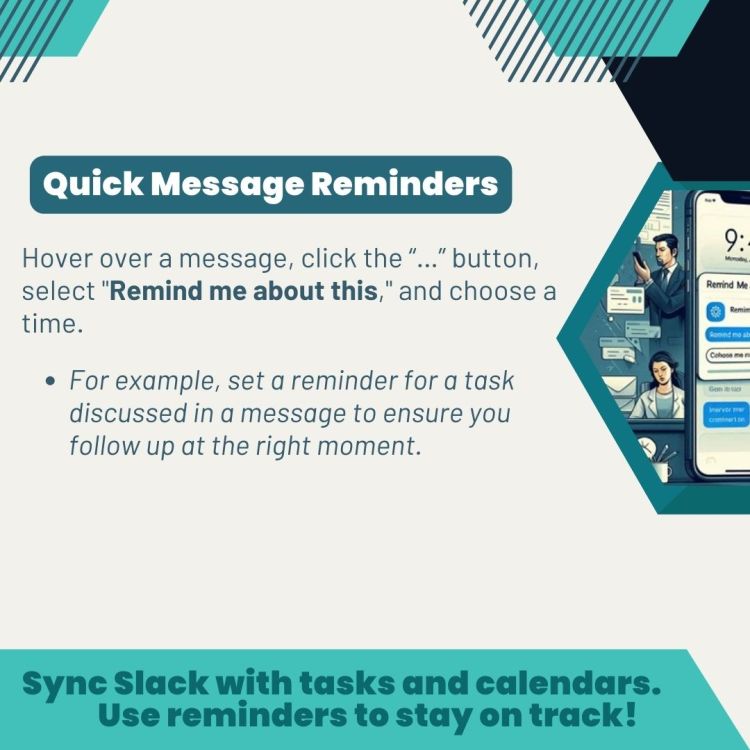
Quick Message Reminders
- Create reminders for specific messages to revisit later.
- Hover over the message you want to be reminded about, click the “…” (more) button, select “Remind me about this,” and choose a time.
- Example: Set a reminder for a message with important follow-up actions so you can address it later when you have more time.
| Integrating Slack with task and calendar apps, and utilizing reminder features, keeps you and your team organized and on schedule. |

7. Automate Task Management with Zapier
Zapier connects different apps and automates workflows between them, helping you streamline processes and save time.
Here’s how you can use Zapier with Slack to automate task management:
Slack + Google Sheets
- Automatically log new messages from a specific Slack channel to a Google Sheet.
- Set up a Zap that triggers whenever a new message is posted in the #project-updates channel. The Zap adds the message content, username, and timestamp to a Google Sheet.
- This creates a log of all project-related discussions for easy reference.
Slack + Todoist
- Create tasks in Todoist from Slack messages to ensure important items are tracked.
- Configure a Zap to create a new Todoist task whenever a message containing a specific keyword (e.g., “urgent” or “task”) is posted in a designated Slack channel.
- This automation helps you capture actionable items and manage tasks efficiently.
Slack + Gmail
- Send a summary of Slack messages to your Gmail for review.
- Use Zapier to send a daily summary of all messages from a specific channel to your Gmail.
- This allows you to review key discussions without constantly being in Slack.
| Automations with Zapier save time by reducing manual data entry and ensuring that important tasks and information are captured and managed efficiently. |
8. Enhance Project Management with Slack Integrations
Integrate your instant messaging platform with project management tools to streamline task management and keep your projects on track.
Trello Integration
Create and Manage Trello Cards
- Set Up Integration: Connect Slack to Trello using the Trello Slack integration.
- Create a Card: In Slack, type a command or use a Trello button in the message options to convert a message into a Trello card. The Trello button in Slack’s message options comes from integrating Trello with Slack using Slack’s Trello app.
- If a team member posts a message about a new task, click on the “…” (more) button next to the message, select “Add to Trello,” and choose the appropriate board and list. This ensures the task gets tracked and assigned.
Update Deadlines and Assign Tasks
- Set Up Integration: Ensure Slack and Trello are connected.
- Update a Card: Use Slack commands or buttons to modify Trello cards. For example, use a command like /Trello update card to change deadlines or assign tasks.
- If a new deadline is discussed in Slack, type the command /Trello update card [card-id] due [new-date] in Slack to update the Trello card with the new deadline directly from the chat.
Asana Integration
Add Tasks on Projects
- Set Up Integration: Connect Slack to Asana using the Asana Slack integration.
- Add a Task: Use a Slack command or button to convert a message into an Asana task. The integration allows you to create tasks directly from Slack.
- If a message in Slack outlines a new project requirement, type a command like /asana add task or use the Asana button in the message options to create a task in Asana. Click on the “…” (more) button next to the message, select “Add to Asana,” and fill in the details. This ensures the requirement is tracked and assigned in Asana.
Add Comment on Projects
- Set Up Integration: Ensure Slack and Asana are connected.
- Comment on a Task: Use Slack commands or buttons to comment on Asana tasks. This helps keep your project communication and task updates in sync.
- If you need to add a comment to an Asana task discussed in Slack, type a command like /asana comment [task-id] [comment] in Slack. You can also use the Asana button in the message options to comment directly on the task from within Slack.
Receive Notifications in Slack
- Set Up Integration: Connect Slack to Asana to receive notifications.
- Get notifications in Slack about updates in Asana projects, such as task completions or deadline changes. This keeps you informed about project progress without needing to switch tools.
Automatic Syncing
- Set Up Integration: Ensure automatic syncing is configured between Slack and Asana.
- Automatically sync discussions from Slack to relevant project boards in Asana. For instance, if a discussion in Slack relates to a project update, it can be automatically reflected in the Asana project board to keep all team members updated.
| Integrations with project management tools save time by centralizing your workflow and ensuring tasks and updates are captured accurately. |

9. Simplify File Management with Slack Integration
Efficient file management is essential for teams that frequently collaborate on documents. Integrate Slack with your file management system like Google Drive or Dropbox to streamline document handling directly from your chat environment.
Share Files Seamlessly
- How to Share Files: Integrate Slack with Google Drive or Dropbox to easily share files within your channels. Upload and share documents directly from Slack without switching apps.
- Example: Share a Google Doc link in a Slack channel. Team members can access, preview, and comment on the document right within Slack.
Manage Files Directly
- How to Manage Files: Preview, comment on, and manage files from within Slack. The integration allows you to handle documents without leaving the chat environment.
- Example: Receive a Dropbox file link in Slack. Preview the file and add comments directly in Slack, facilitating streamlined feedback and collaboration.
| Integrating file management systems with Slack simplifies file sharing and collaboration, reducing the need to switch between applications. |
10. Foster Team Engagement with Interactive Polls and Surveys
Engage your team and gather valuable feedback by using interactive polls and surveys directly within Slack channels. This can streamline decision-making and ensure everyone’s opinions are considered efficiently.
Install Polling Apps
Use apps like Simple Poll or Polly, available from the Slack App Directory, to create polls and surveys.
- Simple Poll: Allows you to create quick, simple polls with multiple-choice options.
- Polly: Offers more advanced survey features, including multiple question types and detailed analytics.
Create a Poll
- Simple Poll: Type /poll “Your question?” “Option 1” “Option 2” in a Slack channel to create a basic poll. For example: /poll “Best meeting time?” “Morning” “Afternoon”.
- Polly: Use the /polly command or follow the app’s interface to create a more complex survey with various question formats.
Distribute and Collect Responses
- Post a poll in your channel to decide on the best time for a team meeting or to gather feedback on a project update.
- Team members can vote directly in the Slack channel, and results are displayed in real-time.
| Interactive polls and surveys in Slack help streamline decision-making processes by quickly collecting feedback from team members. |

Conclusion
Slack isn’t just a messaging platform—it’s a powerful tool for transforming how you work and collaborate.
By exploring its advanced functionalities and integrating it with the apps you use every day, you can elevate your productivity and streamline your workflow.
Make the most of Slack’s capabilities to work smarter and more efficiently. Implement these strategies to unlock new levels of effectiveness in your daily tasks!

Prefer a visual? Explore the key points in this SlideShow presentation:









Ready to delegate? Explore the unique value I add to your business!
Click here to learn more about my services and how I can bring a holistic approach to your work.
 Cath Assist Service