
In today’s fast-paced world, staying organized and efficient is essential.
Google Docs and Google Sheets are constantly evolving with new features designed to enhance productivity.
I’ll highlight some of the most impactful updates in this two-part blog series.
This first post focuses on Google Docs, which has features that can make managing your documents much easier.
Part two will cover the latest improvements in Google Sheets, so stay tuned!

1. Struggling to integrate data from various apps into your documents?
Solution: Extensions – Third party Add-Ons
Google Docs allows you to seamlessly integrate rich data from third-party applications through extensions.
These add-ons help streamline your workflow by bringing external content into your documents, ensuring that all relevant information is easily accessible in one place.
How to Use It
- Install Add-Ons: Start by installing the necessary add-ons for the third-party apps you want to use. Navigate to Extensions > Add-ons > Get add-ons in Google Docs to explore available options.
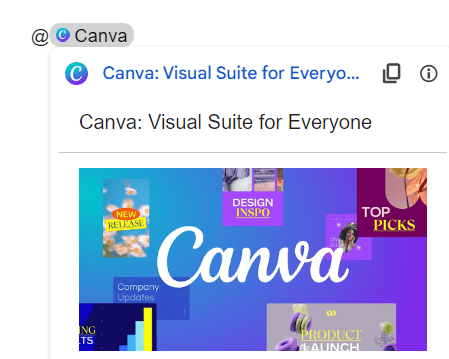
- Create Smart Chips: You can create smart chips for some add-ons. Once installed, type “@” and choose the app from the integration options. For example, when using tools like Canva, the smart chip will generate a link or reference in your document. Click on the smart chip to open and collaborate on your design directly in Canva, without leaving Google Docs.
Examples
- Mail Merge: This add-on allows you to efficiently create a batch of personalized documents.
It enables you to craft a form letter, and automatically customize it for each recipient by linking a data source, such as Google Sheets.
Placeholders in the document will dynamically update with data like names or addresses, making this add-on perfect for personalized emails, letters, labels, or envelopes—all from Google Docs. - Onelook Thesaurus: For users needing a powerful writing assistant, the Onelook Thesaurus add-on provides real-time suggestions.
It makes it easier to improve word choice and enhance your writing style within the document itself.
Extra tip
AI in Your Google Docs:
Many extensions now bring AI capabilities into your Google Docs without needing external tools.
For instance, extensions like GPT for DocsTM add-on or WorkGPT extension integrate AI, allowing you to interact with AI directly from your document. You can chat with the AI in the side panel to generate content, summarize, write, or rephrase text as needed.
While some extensions may require a paid subscription or offer limited free trials, the increasing accessibility of these AI tools represents a significant opportunity to streamline your workflows and boost productivity.
As AI technology continues to evolve, we can expect even more innovations that will further enhance your document creation process in Google Docs.
| Utilizing third-party add-ons not only enhances your document’s functionality but also streamlines collaboration across different platforms. By integrating rich data and creating smart chips, you can consolidate essential information, making your workflow more efficient and keeping everything you need within easy reach. |

2. Need a better way to take meeting notes?
Solution: Meeting Notes Template
Taking effective meeting notes can be time-consuming, especially when you need to manually add details like the date, attendees, and agenda.
The Meeting Notes Template in Google Docs simplifies this process by automatically pulling in event details directly from Google Calendar.
How to Use It
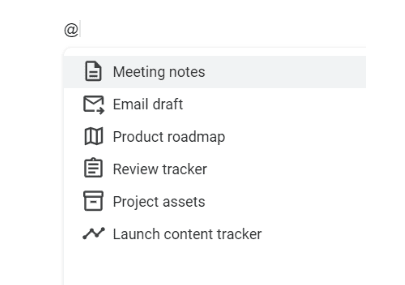
- Go to “File” > “New” > “Meeting notes” in Google Docs (or just click @ and search for meeting notes in the menu)
- You’ll be prompted to select a meeting from your Google Calendar.
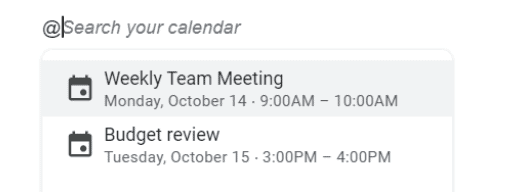
- Once selected, the template automatically populates key details:
- Date: The date of the event is filled in at the top.
- Attendees: All the participants listed in the Google Calendar event will be included.
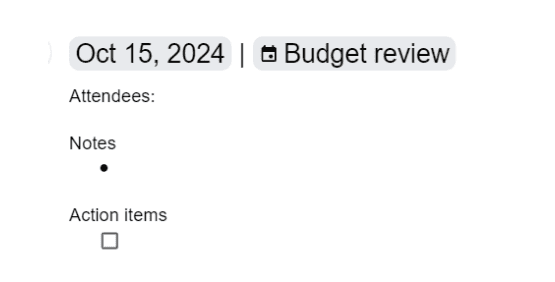
Example
Let’s say you have a recurring weekly team meeting.
Instead of starting from scratch every time, you can use the Meeting Notes Template to instantly set up your notes with all relevant details in place.
This allows you to start documenting the discussion immediately, without worrying about formatting or finding out who attended.
Extra tip
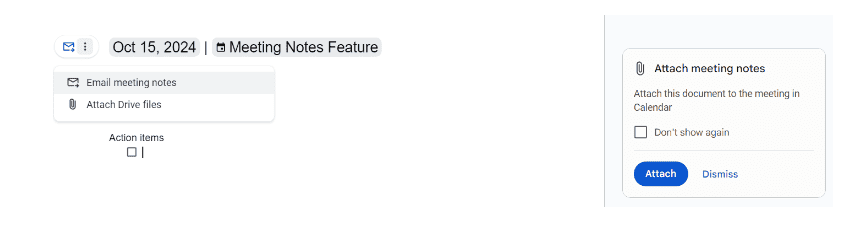
- Once you’ve finalized your meeting notes, you can easily share them with your team.
Email the notes directly from Google Docs by clicking on “more actions” “Email meeting notes” and send them to all attendees. - By clicking “Attach” in the “Attach meeting notes” pop-up, you can also attach the document to the meeting event in Google Calendar.
It ensures everyone has easy access to the notes alongside the event details and that they are always consistent with your event details.
| By using the Meeting Notes template, not only do you save time, but you also create more organized and useful meeting records that are automatically tied to your calendar. |
3. Want to make documents without page limits?
Solution: Pageless Format
4. Wish you could type as fast as you talk?
Solution: Voice Typing
5. Struggling to keep your long documents organized?
Solution: Document Tabs
Document Tabs helps you organize long documents by dividing them into distinct, easily navigable sections.
This makes it simpler to manage content, collaborate with others, and quickly access specific parts of your document.
How to Use It
- By default, a new document has a tab called “Tab 1.” You can’t delete “Tab 1” unless another tab is present.
- To open the left panel, at the top left, click “Show tabs & outlines“.
- Click “Add tab” (+) to add a tab
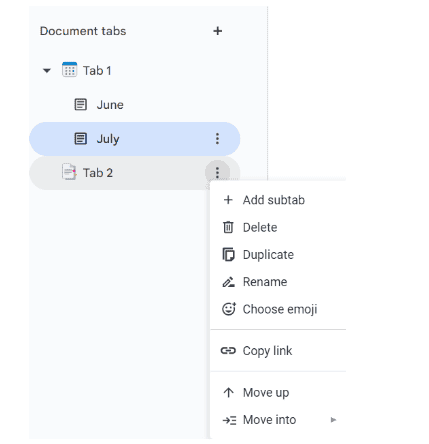
When you create a tab, it’s like adding multiple sheets in Google Sheets. You can organize and handle several tabs within one document.
To make it more user-friendly, you can customize each tab with:
- Subtabs: Organize content further within a main tab.
- Emojis: Assign emojis to tabs for quick recognition and a visual way to identify sections. For example, you might use a 📊 for a budget tab or 🎯 for goals.
Example
Use tabs to manage sections of a marketing plan, such as budget, goals, and ideas, to help your team focus on specific areas.
Extra tip
You can share direct links to specific tabs with your collaborators.
This way, they can jump straight to the section they need to review or contribute to, enhancing targeted collaboration and reducing confusion.
| The Document Tabs feature is a helpful tool for keeping long documents organized and manageable. It improves navigation, enhances collaboration, and allows for a structured approach to content creation. |

Conclusion
Google Docs continues to push the boundaries of what’s possible in document creation and collaboration.
These features are designed to make your workflow more seamless and efficient.
Whether you’re organizing projects, collaborating with teams, or simplifying daily tasks, these updates will help you get more done with less effort.
Stay tuned for part two, where we’ll explore the latest updates in Google Sheets, and discover how it can further streamline your productivity!

Ready to delegate? Explore the unique value I add to your business!
Click here to learn more about my services and how I can bring a holistic approach to your work.
 Cath Assist Service