

In the first part of this series, we explored how Google Docs is transforming the way we manage and collaborate on documents.
Now, in part two, we shift our focus to Google Sheets.
Whether you’re handling complex data analysis or just tracking simple tasks, Google Sheets has introduced some powerful new features to help you stay organized and efficient.
From advanced data tools to better collaboration options, let’s discover the latest updates that can take your spreadsheets to the next level!

1. Wish you could just ask your spreadsheet questions?
Solution: AI Extensions – Formula Builder
AI extensions are transforming the way we work with spreadsheets by incorporating formula builders that allow you to create complex calculations using simple natural language.
Tools like GPT can automatically generate formulas in Google Sheets, reducing the time and effort needed for manual input.
This integration streamlines the formula-building process, making data management more intuitive and efficient.
How to Use It
- Install Add-Ons: Start by installing the necessary add-ons for the third-party apps you want to use. Navigate to Extensions > Add-ons > Get add-ons in Google Sheets to explore available options.
- Choose the extension that works best for you: I like to use Coefficient for its user-friendly interface.
- After installation, access the extension from the Extensions menu.
- Type your question in the sidebar: For example, “What is the average of Q1 sales?” The formula builder will generate the appropriate formula for you.
- Copy and paste the formula: Place the formula in your sheet where you want it to appear.
Examples
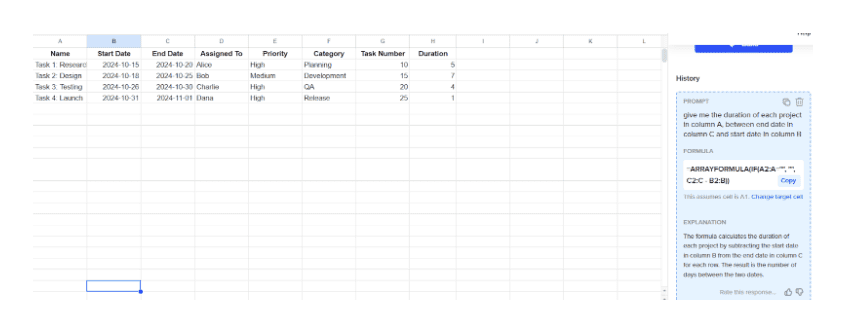
- Project Duration: I asked for the duration of each project.
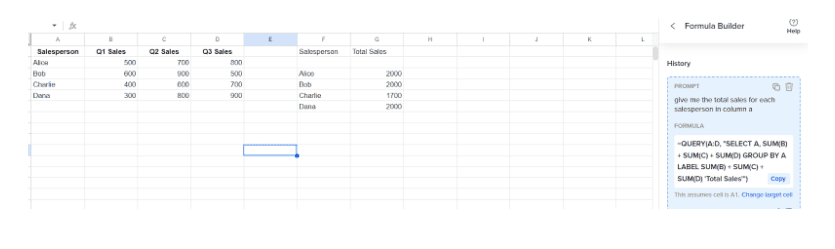
- Average Sales: I asked for the average sales for each salesperson.
Extra tip
Don’t limit yourself to basic mathematical formulas!
These extensions can do so much more in Google Sheets.
With these tools, you can apply conditional formatting to make important data stand out, split cells to organize your information effortlessly and utilize lookup functions for quick data retrieval.
Say goodbye to the burden of looking for formulas!
| Integrating GPT into Google Sheets enhances user experience by simplifying data interaction. This feature eliminates the complexity of remembering formulas, enabling users to concentrate on data analysis and interpretation. By adopting these AI extensions, you can improve your workflow, making formula creation a straightforward and dynamic task. |

2. Frustrated by Repetitive Data Entry Tasks?
Solution: Smart Fill
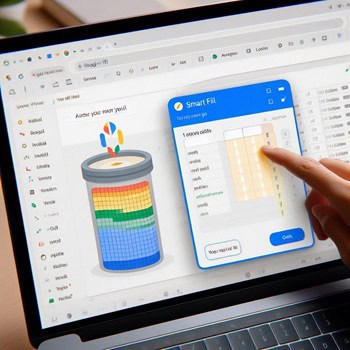
Smart Fill is an innovative feature in Google Sheets that automates repetitive data entry tasks using machine learning. By learning from patterns in your data, it suggests entries, helping you save time and reduce errors. Here are some key benefits:
- Time-Saving: Smart Fill streamlines the data entry process, allowing you to fill in data quickly and efficiently.
- Reduced Errors: It minimizes human error by suggesting accurate entries based on recognized patterns.
- Pattern Adaptation: Smart Fill adapts to the unique patterns in your dataset for improved accuracy.
How to Use It
- Go to Tools > Preferences > Enable Autocomplete.
- Start entering a value in a column.
- Smart Fill will automatically detect the pattern based on your input.
- Review the suggested entries.
- Click to accept the suggestions.
Example
If you have a column with full names and want to split them into first and last names, simply type a few entries.
Smart Fill will prompt you with suggestions based on the pattern it recognizes, making it easy to complete the rest of the list.
Extra tip
When using Smart Fill, ensure to add headers in the columns you want to fill.
Since the inserted formula begins in the cell where the pattern is detected, any cells above will contain only manually entered data.
If you don’t include headers, the initial manually entered values won’t be included in the formula.
As a result, if you update your data, the earlier cells won’t change automatically.
| Smart Fill can significantly enhance your efficiency in data entry, allowing you to concentrate on analyzing your data rather than on tedious manual input. By automating repetitive tasks, it not only helps maintain data accuracy but also saves you valuable time. |
3. Need to Analyze Data from Different Angles?
Solution: Create Group by View

4. Want to Connect People and Resources Directly in Your Spreadsheet?
Solution: Smart Chips for Google Sheets
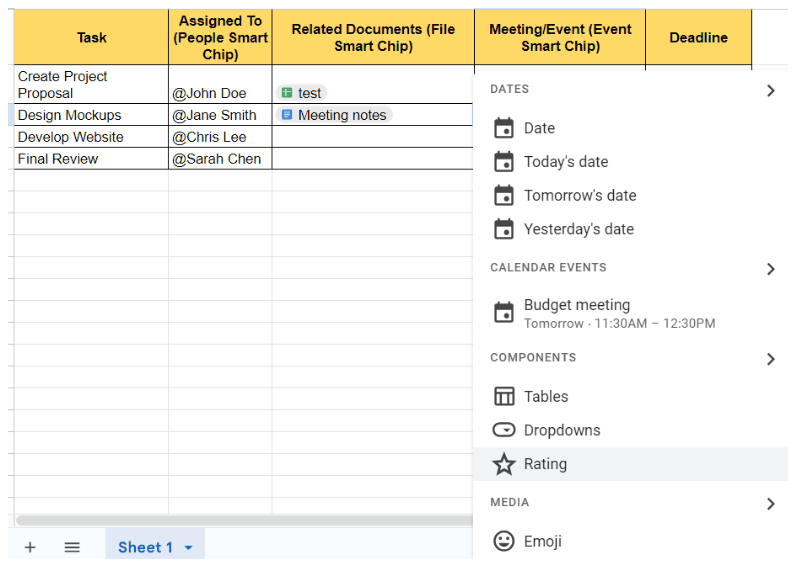
- If you’re managing a project timeline, you can insert people’s smart chips to assign tasks directly within your spreadsheet.
- You can also link relevant documents or meeting details for quick access to all essential project information in one place.

5. Want to Automate Tedious Tasks?
Solution: Macros in Google Sheets
Although Macros aren’t a new feature in Google Sheets, they continue to be a powerful tool for automating repetitive tasks.
Macros allow you to record sequences of actions—like formatting, sorting, or applying formulas—and then perform them automatically with just a click, saving you time and ensuring consistency.
How to Use It
- Go to Extensions > Macros > Record macro.
- Perform the actions you want to automate.
- Stop the recording, give your macro a name, and assign it a shortcut.
- Run the macro whenever needed, and Sheets will replicate the recorded steps automatically.
Example
Suppose you frequently prepare monthly sales reports that require specific formatting.
Here’s how to automate the process using a macro:
Extra tip
For advanced users, you can tweak the recorded macro code using Google Apps Script to customize the automation even further, making it even more powerful.
| While not a new feature, Macros in Google Sheets remains a vital tool for increasing efficiency and minimizing repetitive work. By automating tasks, you can focus on more critical aspects of your workflow, making your processes faster and smoother. |

Conclusion
These features transform how you work in Google Sheets by enhancing your productivity, streamlining your workflow, and making your tasks easier and more efficient.
Embracing these innovative capabilities not only enhances your data management but also empowers you to unlock insights from your data, and achieve faster completion times, and more effective collaboration.
As Google Docs and Sheets continue to evolve, we can look forward to exciting updates that will further enhance collaboration and user experience.
The future of productivity tools is bright, with promising developments in AI-driven features, real-time collaboration, and even voice control and augmented reality technologies!
These advancements keep Google Docs and Sheets at the forefront of innovation, ensuring they remain indispensable tools for anyone looking to boost their productivity.
I encourage you to explore these features and see for yourself how they can elevate your workflow. Your projects deserve this upgrade!

Ready to delegate? Explore the unique value I add to your business!
Click here to learn more about my services and how I can bring a holistic approach to your work.
 Cath Assist Service